USB-to-VGA Adapters
USB-to-VGA adapters convert a USB port into a VGA video output for connecting laptops or desktops to older monitors and projectors. This category includes 31 indexed products, averaging a 4.45 rating and mid-range prices around $53, with brands like WAVLINK and StarTech represented
Top Products

FOINNEX VGA to HDMI Adapter Cable 33ft/10m
FOINNEX
Budget
Plugable USB 3.0 to DVI/VGA/HDMI video adapter for multiple displays
Plugable
Mid-Range
USB-C to HDMI DisplayPort VGA adapter (4K) by BENFEI
BENFEI
Budget
Plugable USB 3.0 to HDMI DisplayLink adapter
Plugable
Mid-Range
USB 3.0 to Dual HDMI Adapter for Windows
StarTech.com
Mid-Range
USB 3.0 to HDMI adapter (Windows only, 1080p)
StarTech.com
Mid-Range
WAVLINK USB3.0 to HDMI/DVI/VGA Universal Display Adapter
WAVLINK
Budget
j5create USB-A to VGA Display Adapter JUA311
j5create
Mid-Range
WAVLINK USB-C/USB 3.0 to HDMI Dual Monitor Adapter
WAVLINK
Mid-Range
WAVLINK USB 3.0 to HDMI Adapter for 2K displays (up to 6 monitors)
WAVLINK
Mid-Range
USB-C to Dual DP DisplayPort adapter (4K 60Hz) for USB-C laptops
Selore&S-Global
Budget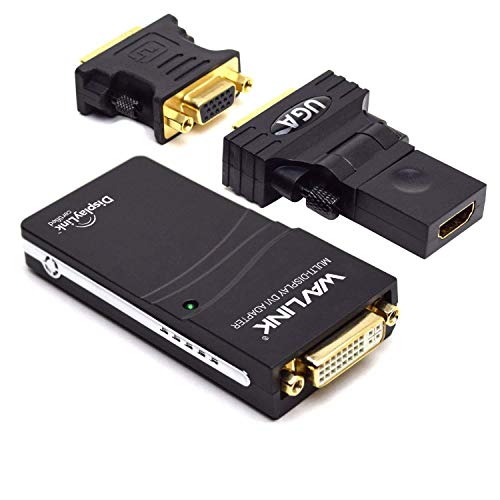
WAVLINK USB to VGA/DVI/HDMI Display Adapter with DisplayLink
WAVLINK
Mid-Range
WAVLINK USB 3.0 to HDMI/DVI/VGA Adapter with Audio
WAVLINK
Budget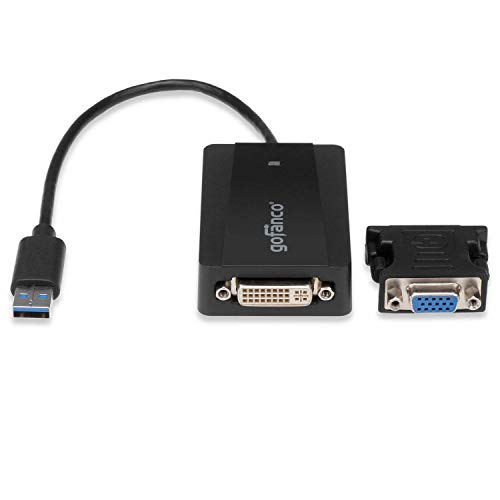
USB 3.0 to DVI Adapter with DisplayLink
gofanco, LLC
Mid-Range
WAVLINK USB-C/USB-A to HDMI dual-monitor adapter
Wirelessforce
Mid-Range
USB C to HDMI VGA Adapter 7 in 1 Hub with 4K HDMI, 100W PD, USB-A, Audio, SD/TF
iDsonix
Budget
USB to VGA Adapter with built-in USB 2.0 cable (U244-001-VGA)
Tripp Lite
Budget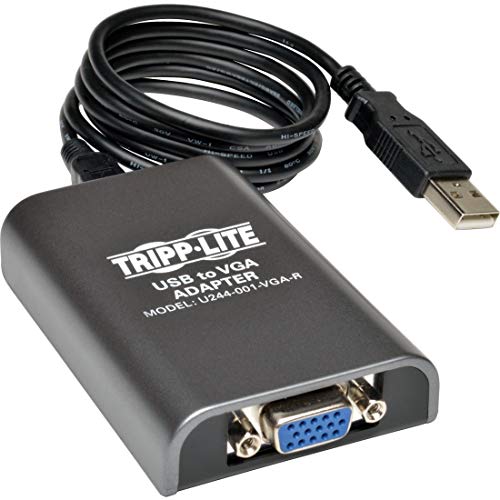
Tripp Lite USB 2.0 to VGA external graphics adapter
Tripp Lite
Budget
USB 3.0 to HDMI adapter for 4K 30Hz display
StarTech
Mid-Range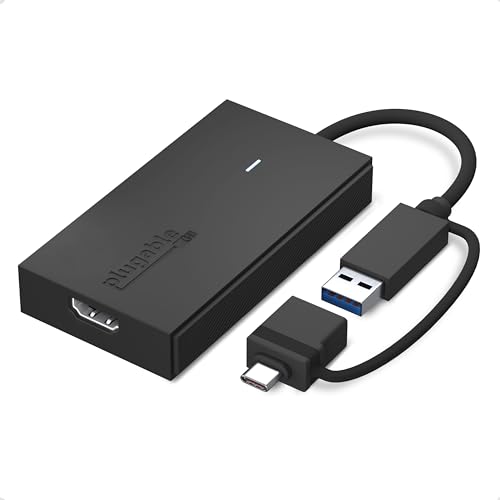
Plugable USB C to HDMI Adapter for USB-C/USB 3.0 Macs & Windows
Plugable
Mid-Range
Mining Riser Card VER012 MAX USB 3.0 PCI-E Riser Adapter 1X to 16X
lemincrash
Mid-Range
USB 3.0 to HDMI-DVI-VGA external graphics card adapter
FLY KAN
Mid-Range
Herfair USB to HDMI Dual Monitor Adapter
Herfair
Budget
USB-C to VGA multiport adapter with USB-A, PD charging & ethernet
Tripp Lite
Mid-RangeRoundups
Frequently Asked Questions
What does a USB-to-VGA adapter do and when do I need one?
A USB-to-VGA adapter converts a computer’s USB output into an analog VGA signal so you can connect VGA-only monitors or projectors to laptops and desktops that lack a VGA port; use one when your device has no VGA port but supports video over USB (usually USB-A or USB-C with DisplayLink or built-in alternate mode)
How do I choose the right USB-to-VGA adapter for display quality?
Check supported resolutions (most adapters handle 1080p; some support 1920x1200 or higher), the refresh rate at that resolution (usually 60 Hz or lower for USB-based solutions), and whether the adapter uses a graphics protocol like DisplayLink which affects performance and driver requirements
Are drivers required and which operating systems are supported?
Many USB-to-VGA adapters require drivers—common ones use DisplayLink drivers—so verify compatibility with your OS (Windows, macOS, Linux) and download the latest driver from the adapter vendor or DisplayLink; some basic plug-and-play functionality may exist but full resolution/feature support usually needs drivers
Will a USB-to-VGA adapter support multiple monitors or extend vs mirror modes?
Adapters can support extended or mirrored displays depending on the adapter and system GPU; a single USB-to-VGA adapter typically adds one additional VGA display, while multiple adapters or a docking station are used for more monitors—driver and OS multi-monitor support determine whether extension is allowed
What about power, latency, and performance for video and gaming?
USB-to-VGA adapters are best for office productivity, presentations, and video playback; they introduce more latency and lower graphics performance than native GPU outputs, so they are not ideal for fast-paced gaming or high-frame-rate video editing
Which physical connectors and cable lengths should I consider?
Confirm whether the adapter uses USB-A or USB-C on the host side and standard VGA on the display side; consider cable length and quality because long VGA runs can degrade analog signal—use short high-quality VGA cables or active extenders for longer distances
How do I maintain and troubleshoot a USB-to-VGA adapter?
Keep drivers up to date, test with known-good VGA cables and displays, reboot after driver installs, try different USB ports (USB 3.0 often recommended), and check the adapter for firmware updates or manufacturer support pages if intermittent output or resolution issues occur