Laptop Docking Stations
Laptop docking stations and port replicators for laptops, tablets, and small desktops, offering extra USB, HDMI/DisplayPort, Ethernet and power passthrough for expanded connectivity. The category spans budget through premium units (511 indexed, average rating 4.30) with prices roughly $33–$600 and notable brands like WAVLINK
Top Products

Selore 8-in-1 USB-C hub with dual HDMI for MacBook Pro/Air
Selore&S-Global
Budget
Selore 10-in-1 USB-C Docking Station for MacBook Pro/Air
Selore&S-Global
Mid-Range
USB C Docking Station with 2 HDMI, VGA, USB, PD, SD/TF
UtechSmart
Mid-Range
UtechSmart 11-in-1 USB-C Docking Station
UtechSmart
Mid-Range
Selore USB C Docking Station with Dual HDMI & VGA
Selore&S-Global
Mid-Range
NOVOO 11 in 1 USB-C docking station with dual HDMI
NOVOO
Budget
USB-C 15-in-1 Docking Station with 2x HDMI and DP
ZMUIPNG
Mid-Range
Baseus USB C to HDMI Adapter 7-in-1 Dock
Baseus
Mid-Range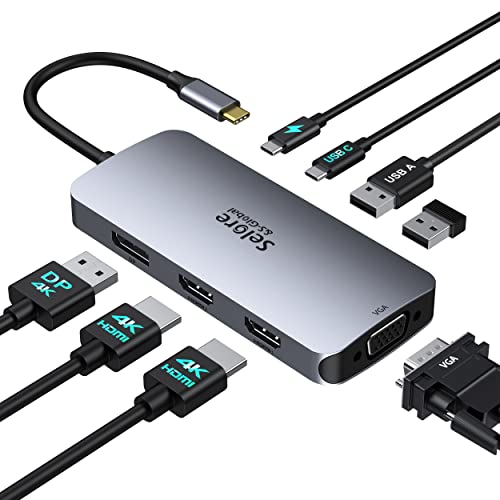
USB C Docking Station Dual HDMI Monitors Adapter
Selore&S-Global
Mid-Range
USB C Docking Station Dual Monitor with 2 HDMI
LIONWEI
Budget
USB C Docking Station with 4K HDMI, DP, VGA, Ethernet, SD/TF
IAVKYU
Mid-Range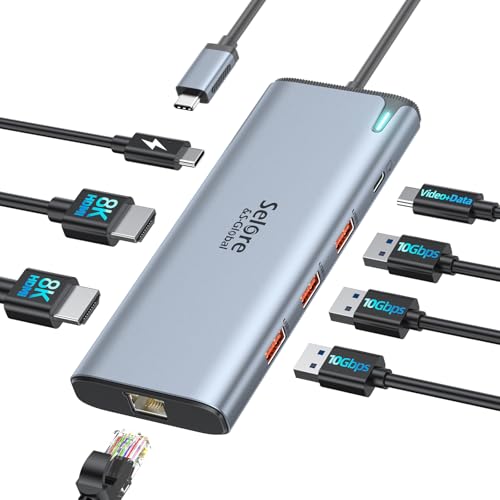
Docking Station USB C Video 8K Dual HDMI USB-C Hub
Selore&S-Global
Mid-Range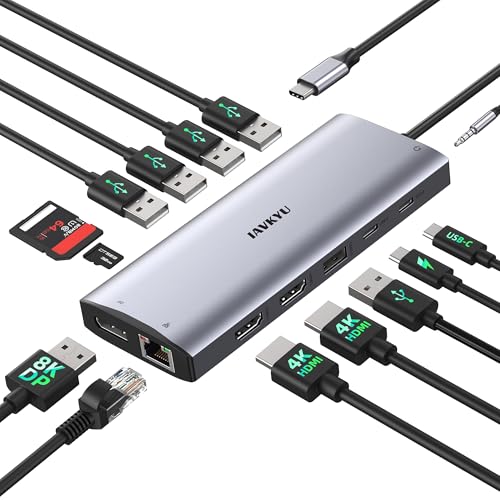
USB-C docking station for 3 monitors and 14-in-1 hub
IAVKYU
Mid-Range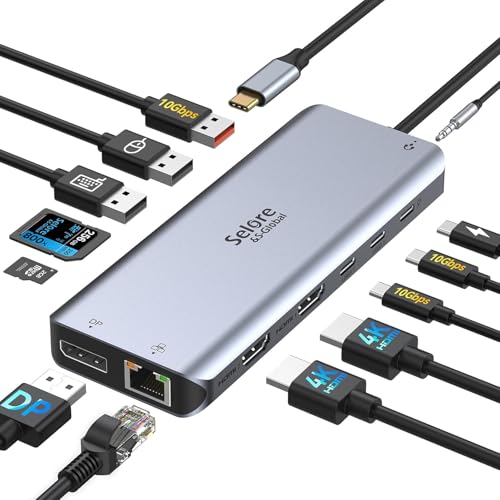
USB-C Docking Station 13-in-1 with Dual HDMI, DP, 10G USB, 100W PD
Selore&S-Global
Mid-Range
Docking Station Dual Monitor USB-C Hub with 4K HDMI, 100W PD, SD/TF
Selore&S-Global
Mid-Range
USB-C Docking Station 15-in-1 with 4K HDMI/VGA, PD, Ethernet
ZMUIPNG
Mid-Range
USB C Docking Station Dual Monitor with 2x HDMI, DP, 100W PD
Selore&S-Global
Mid-Range
LIONWEI 11-in-1 USB-C Docking Station for Dual 4K HDMI/IGbE
LIONWEI
Mid-Range
LIONWEI 13-in-1 USB-C Docking Station with 2x HDMI and DP
LIONWEI
Mid-Range
USB C Docking Station 8-in-1 4K HDMI DP VGA for laptops
HODO
Budget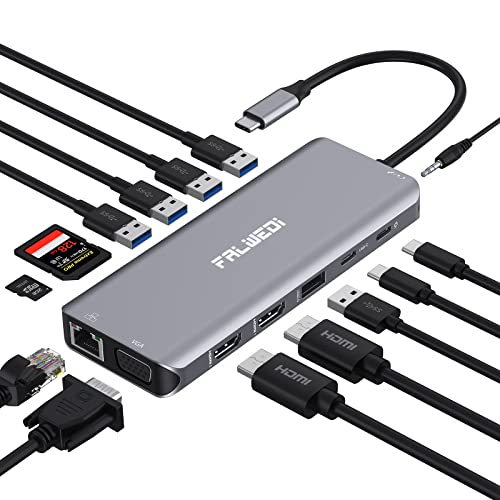
USB C Docking Station 14-in-1 with 2x HDMI, VGA, PD, USB, Ethernet
FALWEDI
Mid-Range
USB C Docking Station 4 Monitors, 13-in-1 Laptop Dock
Selore&S-Global
Mid-Range
HODO USB C Docking Station Dual Monitor Adapter
HODO
Budget
USB C Docking Station 8-in-1 with 2xHDMI, DP, VGA, USB 2.0, 100W PD
HODO
BudgetRoundups
Frequently Asked Questions
How do I choose the right docking station for my laptop?
Match the dock's connection type (USB-C, Thunderbolt 3/4, USB-A) to your laptop port, confirm supported features (power delivery wattage, video outputs, Ethernet, and USB speeds), and ensure compatibility with your operating system and required external monitors and peripherals
Do docking stations charge my laptop and how much power do I need?
Many docks provide USB Power Delivery (PD); choose one with an output equal to or higher than your laptop's charger rating (commonly 45–100W) to maintain charge under load and support full performance
Can one dock run multiple external monitors and what should I check?
Check the dock's video outputs (HDMI, DisplayPort) and the supported resolutions/refresh rates; also verify whether the dock uses native DisplayPort/Thunderbolt lanes or DisplayLink (which uses USB bandwidth and may need drivers) to determine how many high-resolution monitors it can drive simultaneously
Are docking stations cross-platform between Windows, macOS, and ChromeOS?
Basic features like USB ports, Ethernet, and video over USB-C/Thunderbolt typically work across platforms, but advanced features (audio routing, proprietary drivers, or DisplayLink software) and macOS-specific limitations may affect full functionality—check manufacturer compatibility notes before buying
What port and speed differences should I consider for data transfer?
USB 3.2 Gen 1 (5 Gbps), Gen 2 (10 Gbps), and Thunderbolt 3/4 (40 Gbps) offer increasing data throughput; choose a dock with higher-speed ports if you need fast external storage or low-latency peripherals
How reliable are used or refurbished docking stations and what should I inspect?
Refurbished docks can be cost-effective but inspect for physical wear on connectors, confirm the included power adapter and cables, verify that firmware and drivers are up to date, and buy from sellers that offer a return window or warranty
What maintenance and setup steps help avoid connectivity issues?
Use high-quality cables rated for your dock's protocols, keep firmware and drivers updated, avoid connecting too many high-power devices if the dock's power is limited, and reboot the laptop and dock if peripherals fail to enumerate